
Phone Module
The Phone module can be used within a Form Section to ask Experience participants for inputting their phone number. You can limit the applicable countries for which phone numbers can be submitted.
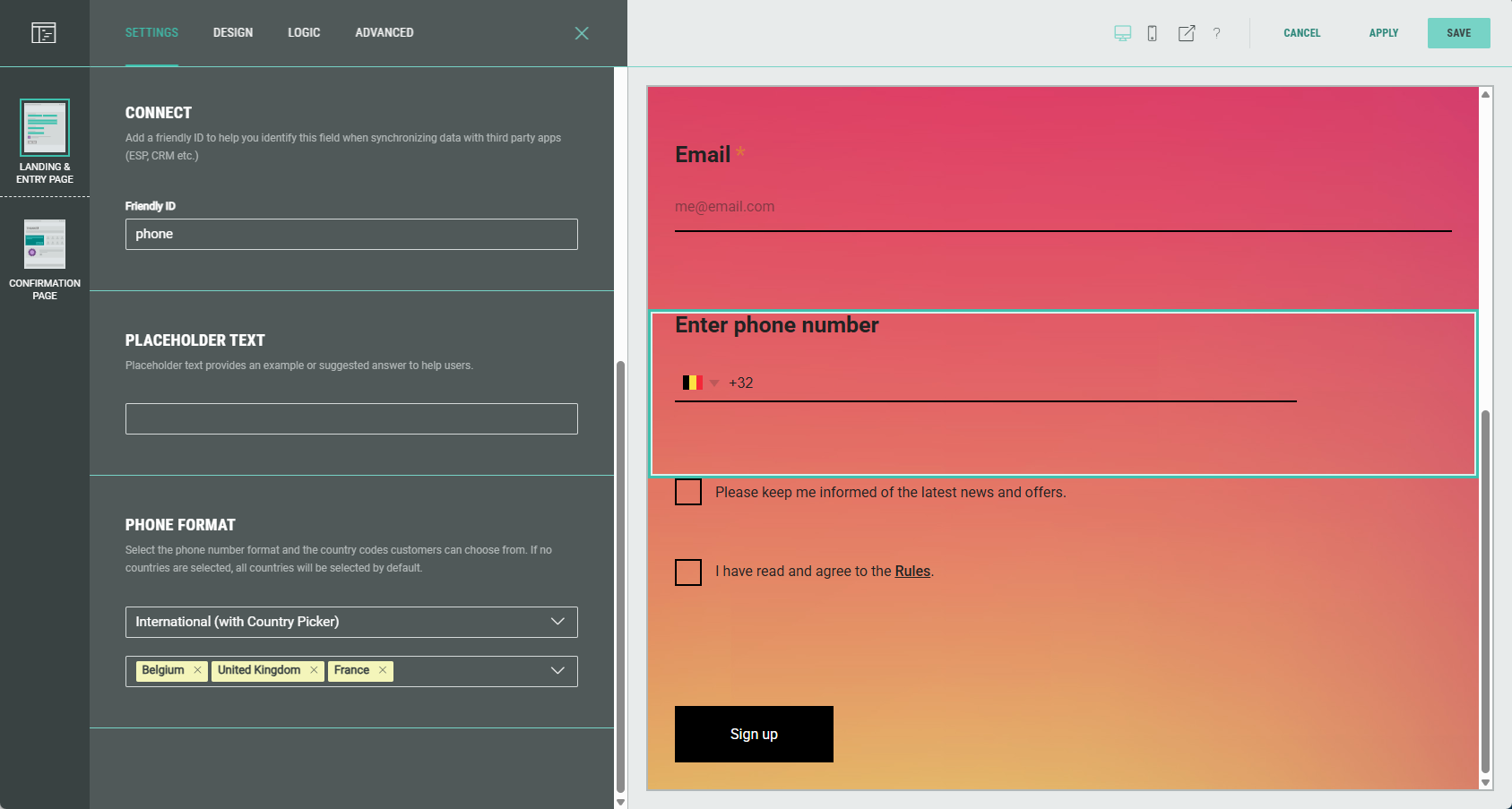
Edit the Phone module in the Page Builder by clicking on the Pencil icon.

The following sections are available which can be edited (from the tabs at the top): Settings, Design, Logic, Advanced.
Settings
On the Settings tab, you can configure:
- Copy — Specify text content and apply styling for tagline, label, byline and help text.
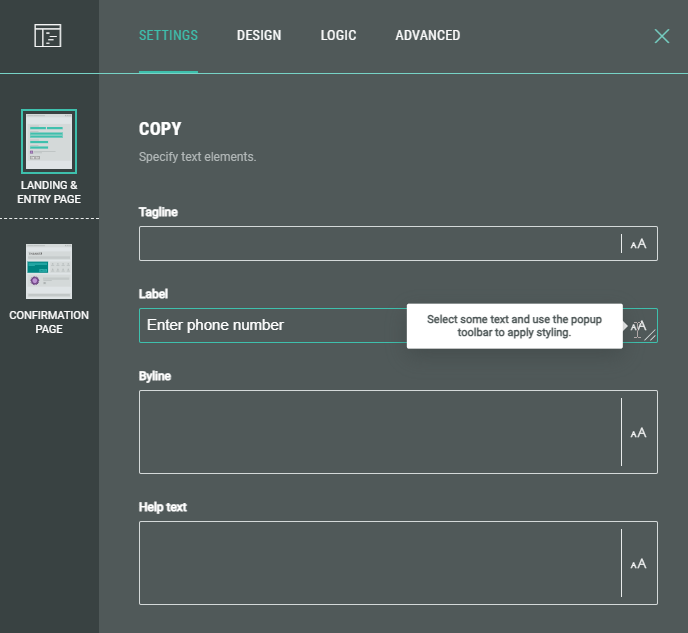
- Required — Enable the toggle to make this a required field for the Experience participant to complete.

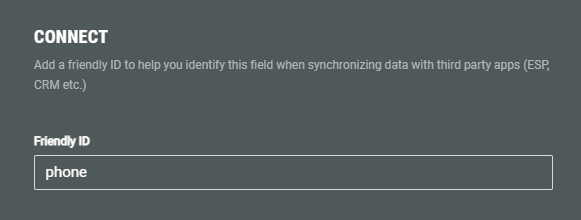
- Connect — You can add a Friendly ID to help you identify this field when synchronizing data with third party apps (ESP, CRM etc.)
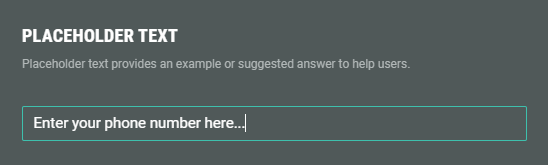
- Placeholder text — You can enter an example or suggested answer as placeholder text for entrants.
- Phone format — You can select one of the following options:
International (with country picker)
Selecting International (with country picker) as phone number format shows a second drop-down, in which you can select one or more countries.
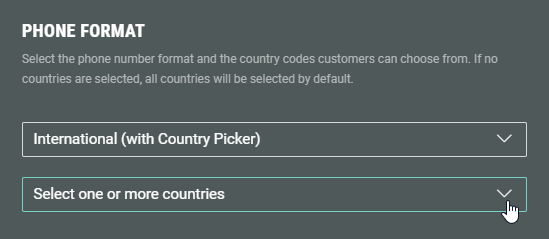
If you do not select one or more countries, all countries will be visible to the Experience participant.
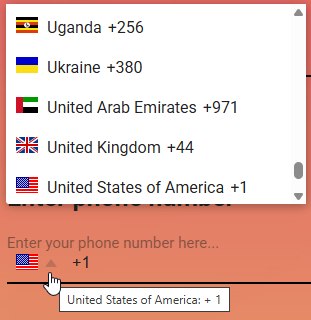
Note: If you want to limit the list of available countries for the participants, you can start typing in the combo box to quickly find and select the desired countries.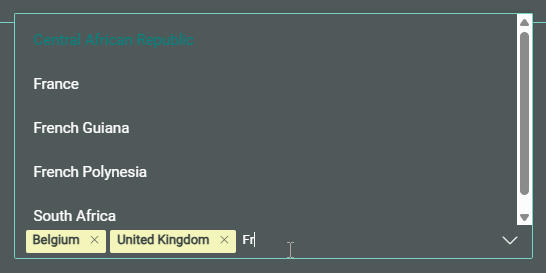
With the selection of countries, Experience participants will see the proper country flags, country names and country codes when filling out the phone number.
You can already validate these by checking the preview on the right.
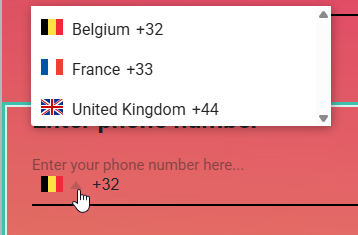
Note: The International (with country picker) option is the recommended choice for all your new configurations.
Standardized E.164 format
For the International (with country picker) option, phone numbers will be collected in the E.164 format, which is the international telephone numbering standard defined by the International Telecommunication Union (ITU). It ensures global consistency in phone numbers so that they can be correctly routed across countries and networks.
An E.164 number can have a maximum of 15 digits, and it typically includes:
+[Country Code][National Destination Code][Subscriber Number]
- +: Indicates it's an international number (some systems may drop this).
- Country Code: 1 to 3 digits (e.g., 1 for the US, 44 for the UK).
- National Destination Code: Often represents area codes or mobile networks.
- Subscriber Number: The individual number assigned to a user or device.
Example:
Country — Local Format — E.164 Format
USA — (415) 555-2671 — +14155552671
UK — 020 7946 0958 — +442079460958
Germany — 030 123456 — +4930123456
Australia — 0412 345 678 — +61412345678
Note: Here you can find more info on the E.164 international public telecommunication numbering plan.
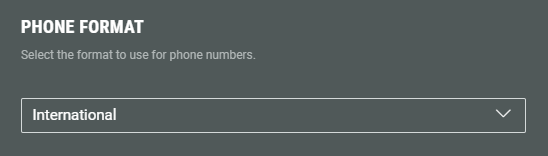
International
Selecting International as phone number format results in all countries being included by default.
This phone number format just shows a simple field, without any country options, for filling out the phone number.
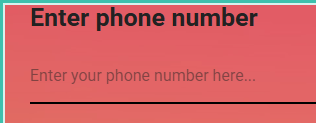
Note: The International option is still available for backward compatibility.
No standardized format
For the International option, phone numbers won't be collected in a standardized format.
Example: UK numbers could start with 07, +44 or 44.
United Kingdom
Selecting United Kingdom as phone number format is only applicable for when you specifically and only require the Experience participants to enter a UK phone number.
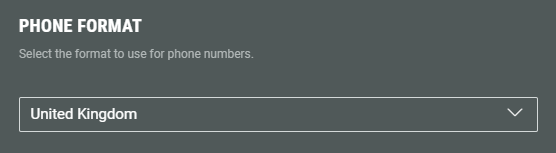
Note: The United Kingdom can also be selected under the International (with country picker) format, which is the recommended approach.
The separate UK option remains available for backward compatibility.
No standardized format
For the United Kingdom option, phone numbers won't be collected in a standardized format.
Example: UK numbers could start with 07, +44 or 44.
North America
Selecting North America as phone number format is only applicable for when you specifically and only require the Experience participants to enter a phone number from North America.
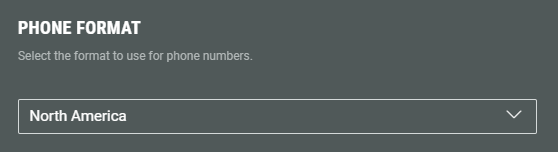
Note: Individual American countries can be selected under the International (with country picker) format, which is the recommended approach.
The separate North America option remains available for backward compatibility.
No standardized format
For the North America option, phone numbers won't be collected in a standardized format.
Example: North America numbers could start with (212), +1 or 212.
Design
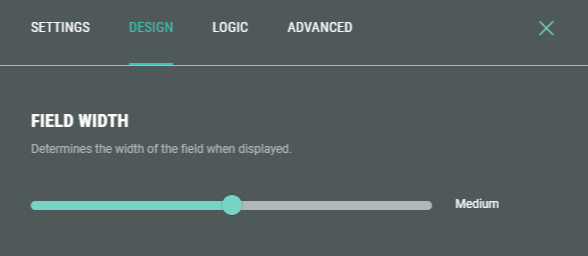
- On the Design tab, you can define the field width by dragging the slider to the left or right (check the preview window on the right to verify the desired field size).
Example: Here you see compact versus large field width.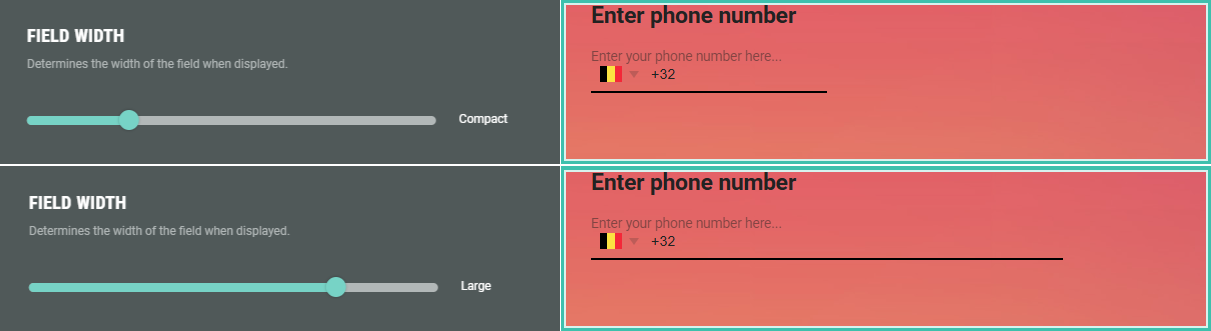
- Additionally, you can assign a CSS classname to the module for using custom CSS styling.
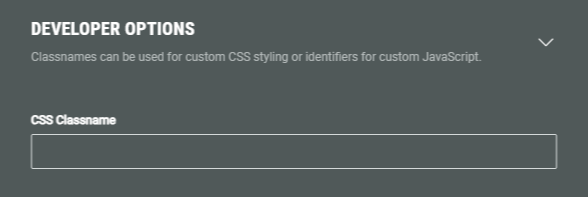
Warning: Using a custom CSS classname will overwrite the default styling.
Only use this when you're familiar with using CSS code.
Logic
On the Logic tab, you can create different question paths for your audience to only ask questions that are relevant to them. This is based on conditional logic determined by answers given to quiz questions in this Experience.
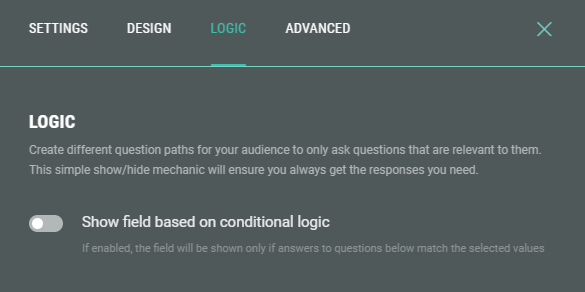
Example: Only show the Phone field when Option B was given as answer to the What are you interested in? question.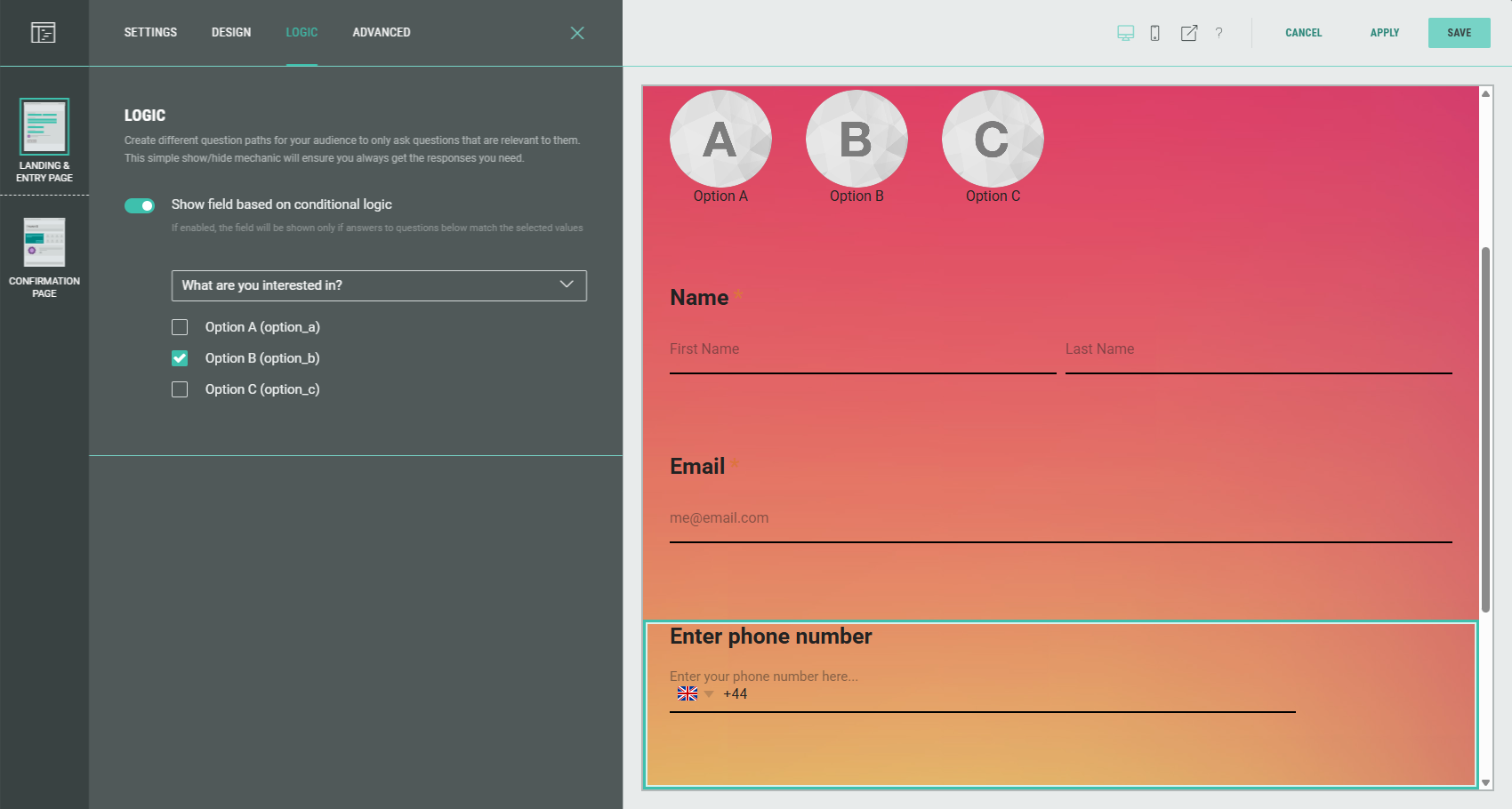
Advanced
On the Advanced tab, you can customize the error message shown when a participants' input for the Phone field is invalid.
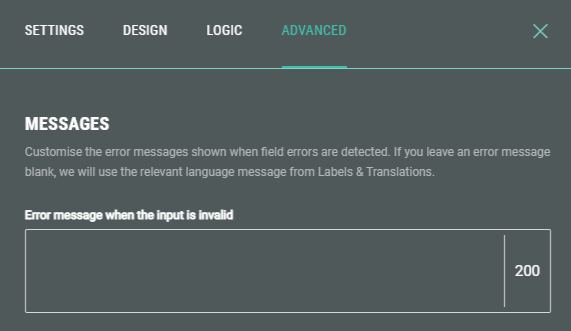
Note: If you leave the error message blank, we will use the relevant language message from Labels & Translations.
